Type Arabic Online — Free Arabic Keyboard, No Installation
Use the Arabic keyboard above right now. Click a key to type Arabic directly, paste Arabic text, or just type normally — by default, your own keys stay in English. If what you type looks like it should become Arabic, a suggestion appears below the box, sometimes with up to six to choose from. Apply it or dismiss it. Prefer your physical keyboard to type Arabic directly? Choose "Type Arabic with a Latin keyboard" at the top of the keyboard — each key then types its Arabic letter immediately, using the QWERTY or AZERTY layout selected in Options, and the on-screen Arabic keys still work. Switching modes never changes text you already typed. Typing and suggestions run locally in your browser, and no installation is required. Your text stays on your device unless you choose to search it on Google or YouTube.
Typing and suggestions are processed locally in your browser. The magnifying-glass keys search the current text on Google or YouTube; text is shared with the chosen service only when you activate that search. Read the privacy details
Help with Arabic word suggestions
When you write in Arabic, a small AI model can use the words before it to put likely words first in the suggestion list. It only changes the order of words already on that list. The choices for words typed with English letters work separately. ArabicKeyboard.ai does not receive the text used for this ranking.
The first time you use it, your browser may download about 49 MB. If it can't load, the ordinary suggestions still work.
مساعدة في اقتراحات الكلمات العربية
عندما تكتب بالعربية، يمكن للذكاء الاصطناعي استخدام الكلمات السابقة لترتيب الكلمات المقترحة. يغيّر فقط ترتيب الكلمات الموجودة في القائمة. اقتراحات الكلمات التي تكتبها بحروف لاتينية تعمل بشكل منفصل. لا يستلم ArabicKeyboard.ai النص المستخدم في هذا الترتيب.
قد يُحمَّل نحو 49 ميغابايت عند أول استخدام. وإذا تعذّر التحميل، تبقى الاقتراحات العادية تعمل.
A faster Arabic writing workflow
Use the quick links below the keyboard to convert Arabizi, repair text typed with the wrong keyboard layout, or add Arabic diacritics. When your device keyboard is set to Arabic, the matching on-screen key responds as you type. Open Typing help and shortcuts for the commands already supported by the editor.
Arabic text-to-speech on your device
After typing or correcting Arabic, select a passage — or leave nothing selected to use the full editor — and choose Listen. The speech engine downloads when you first choose Listen, then runs in your browser. Your text and the generated audio stay on your device.
This is a listening aid, not an authoritative pronunciation guide. The voice is synthetic, and pronunciation can be imperfect, especially for dialects and text without vowel marks.
Style your Arabic text, then download a PNG or a text file
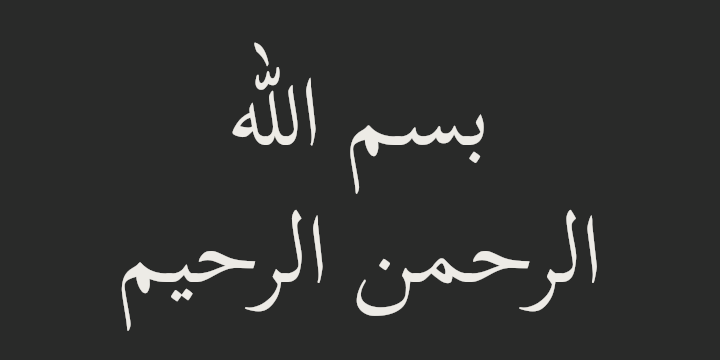
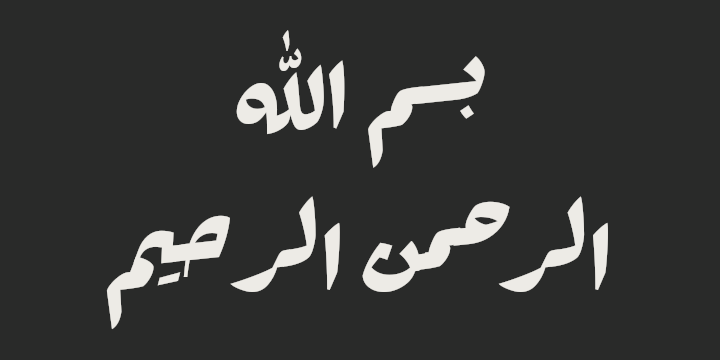
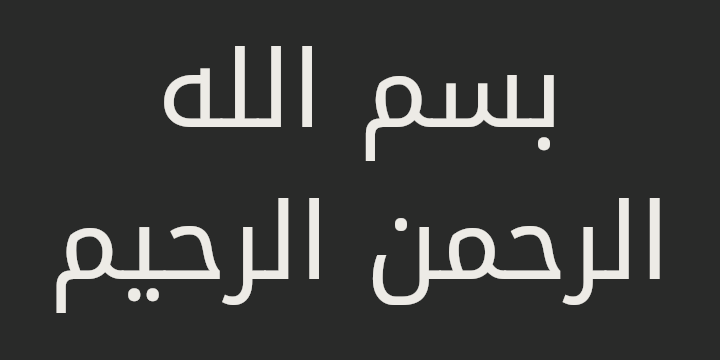
Choose Naskh, Ruqʿah or Kufi and see the style directly in the editor. Download your selection—or all the text—as a PNG in three sizes or as a UTF-8 TXT file. Files are created in your browser; this site does not receive your text.
The same phrase, بسم الله الرحمن الرحيم, set in each of the three styles you can apply.
العبارة نفسها في الخطوط الثلاثة المتاحة.


Read how your typed text is handled
إنشاء صورة PNG من النص العربي
اختر خط النسخ أو الرقعة أو الكوفي وشاهد النتيجة مباشرة في محرر النص. نزّل النص المحدد — أو النص كاملًا — كصورة PNG بأحد ثلاثة مقاسات، أو كملف TXT بترميز UTF-8. تُنشأ الملفات في متصفحك، ولا يستلم الموقع نصك.
Examples
Word suggestions catch common spelling slips as you type. For example, typing انا (missing the hamza) offers the correctly spelled word:
- اناأناSuggested correction — click it to replace the word, or keep typing.
Reference table
A few physical QWERTY positions and the Arabic 101 letters they represent — the same mapping the wrong-keyboard suggestion uses if you paste text typed with an Arabic-101 layout while your system was set to Latin, and the same mapping "Type Arabic with a Latin keyboard" uses. Switch between QWERTY and AZERTY in Options, where the selected keyboard stays shown. See the full QWERTY-to-Arabic 101 reference for every key.
| Physical key | Arabic 101 letter |
|---|---|
| Q | ض |
| D | ي |
| \ | \ |
Supported layouts and modes
- Arabic 101 on-screen keyboard, with Shift and collapsible diacritics
- Direct Arabic typing and pasting, left completely untouched
- General Arabic suggestions, plus Moroccan Darija and Egyptian Arabic ranking (never auto-translated to Modern Standard Arabic)
- Automatic English/Arabizi suggestions, and a wrong-keyboard suggestion, both with Apply and Dismiss
Limitations
- Spelling is checked against a full local Arabic dictionary running entirely in your browser: misspelled words are underlined, click one for suggested corrections, and only a small number of individually reviewed, extremely common mistakes are corrected automatically — everything else stays underlined for you to review, never changed without your say.
- The virtual keyboard appears expanded by default on mobile; you can collapse it to leave more room for the text area.
- On a phone or narrow screen, the on-screen keyboard shows Arabic letters only — paired Latin/Arabic key labels are a desktop feature. A physical keyboard still types Arabic directly in direct mode on any device.
- No account, cloud history, or saved documents — closing the tab clears the editor, by design.
Updated: